

Rules & Quotas
Setting Usage Quotas
Set per-user, shared-role, model, or organization-wide printing limits.
This page walks through the Quotas page (Admin → Quotas), where administrators set up usage limits as described in Rules & Quotas Overview.
The Quotas list
Open Admin in the sidebar, then choose Quotas.
Personal usage does not appear on this administration page. Each signed-in user instead sees a compact My quota usage card near the bottom of the main Dashboard, with a usage bar, current usage, limit, and amount remaining. Quotas are shown as:
- Within limit: comfortably under the limit
- Near limit: at or over a configured warning threshold, but not yet blocked
- Over limit: at or over the hard limit; new jobs that would add to this usage are blocked
The card is omitted entirely when no quota applies to that user. If a quota has separate role, material, color, or printer-model allowances, the card shows the highest-used allowance rather than adding independent limits together.
The quota table
A table lists every quota. Search by name or description, and narrow the list by status (enabled/disabled) or scope (a specific site, or global quotas only).
| Column | Description |
|---|---|
| Quota | The quota’s name, what it allows in plain English, and its description. |
| Applies to | What each tally is kept against, and what the quota is limited to if it’s been narrowed; see below. |
| Measures | What’s being measured, and the time period the limit covers; see below. |
| Limit | The hard limit, and the warning threshold if one is set. |
| Scope | The site this quota applies to, or “Global”. |
| Status | ”Enabled” or “Disabled”. |
Creating or editing a quota
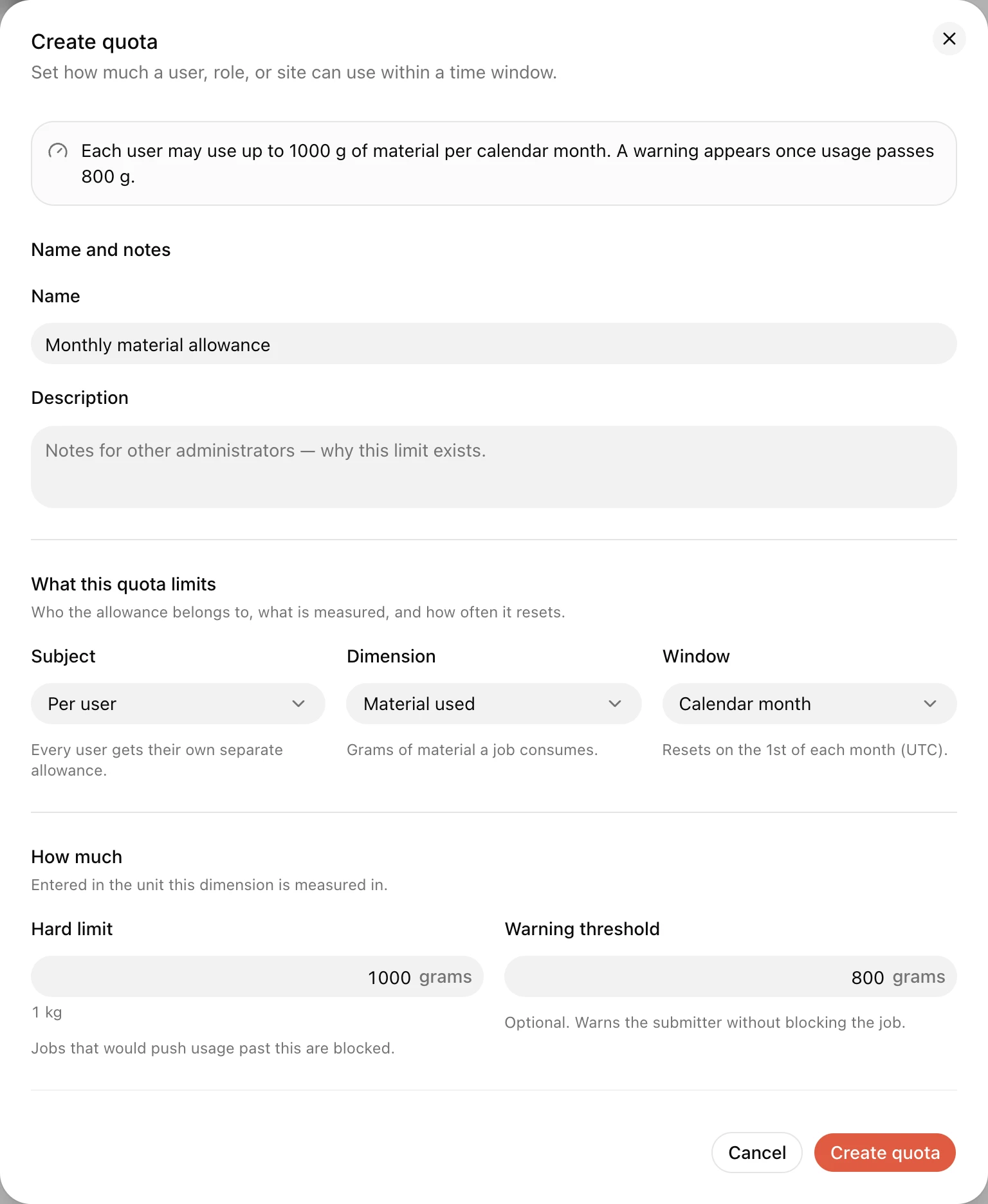
Select New Quota (or Edit on an existing one) to open the quota form.
The top of the form restates the quota as a single sentence, for example, “Each user may use up to 500 g of material per calendar month.”, and updates as you change the fields, so you can read back what you’ve actually built before saving.
| Field | Description |
|---|---|
| Name | A short name (for example, “Monthly filament allowance”). |
| Description | Internal notes about this quota’s purpose. |
| Subject | Who the limit applies to; see Subjects below. |
| Dimension | What is being measured; see Dimensions below. |
| Window | Over what time period; see Windows below. |
| Hard limit | The maximum allowed value. Jobs that would exceed this are blocked. |
| Warning threshold | Optional. A lower value that warns the submitter without blocking. Must be below the hard limit. |
| Site scope | Apply this quota to one site, or “Global” for all sites. |
| Priority | Ordering only: higher priority is listed and reported first. Every enabled quota is always evaluated. |
| Which jobs count | Optional. Restrict this quota to specific users, roles, and/or printer models (see below). |
| Separate allowances | Optional. Track separate totals per material type, color, or printer model (see below). |
| Controlled overrides | Optional. Require approval from one of a configured set of roles before an over-limit job may proceed (see below). |
| Message shown to the user | Shown to the user when this quota blocks or warns about an action. |
| Enabled | Disabled quotas are ignored entirely. |
Entering a limit
Limits are entered in the unit the dimension is measured in, not in raw storage values:
- Print time: separate hours and minutes fields. Minutes over 59 roll up when you leave the field, so “90 min” becomes “1h 30m”.
- Cost: dollars and cents, with a
$prefix. - Material used: grams, with the kilogram equivalent shown underneath for larger values.
- Job counts: a whole number of jobs.
Changing the dimension resets the limits, because a number entered in one unit doesn’t carry over to another.
Subjects
The subject determines whose usage is tracked and limited:
| Subject | Meaning |
|---|---|
| Per user | Each individual user has their own running total. |
| Per role | Each role has a shared running total across everyone who holds it. |
| Global | One running total shared by everyone. |
| Per printer model | One running total per printer model (for example, all P1S printers combined). |
Dimensions
The dimension determines what is being counted:
| Dimension | Measures |
|---|---|
| Material used | Total grams of material used or queued. |
| Print time | Total estimated/actual print time. |
| Cost | Total estimated cost of jobs. |
| Concurrent jobs | Jobs currently queued, being dispatched, printing, or paused. This is the usual choice for limiting how many jobs one person or group may occupy across the whole queue-to-print lifecycle. |
| Concurrent active jobs | How many jobs are printing or paused right now. |
| Concurrent queued jobs | How many jobs are queued right now. |
| Job count | Total number of jobs submitted. |
Choosing one of the concurrency dimensions selects the Instant window automatically, concurrency is a live count, so any other period would be measuring something else.
Windows
The window determines over what period usage accumulates:
| Window | Meaning |
|---|---|
| Instant (concurrent) | A live count right now (used for “concurrent active/queued jobs”). |
| Rolling 24h / 7d / 30d | A rolling window: usage from the last 24 hours, 7 days, or 30 days, recalculated continuously. |
| Calendar day / week / month | Resets at the start of each calendar day, week, or month. |
Which jobs count
By default a quota covers every job it could cover. The Which jobs count section narrows that with three independent conditions, each of which you switch on as needed:
| Condition | Restricts the quota to |
|---|---|
| Only these users | Jobs submitted by the listed people. |
| Only these roles | Jobs from users holding one of the listed roles, matched against their effective (including inherited) roles. |
| Only these printer models | Jobs on the listed models, chosen from the printer catalog. |
Every condition you switch on has to hold for a job to count. Switching on both roles and printer models means “jobs from Students, on a P1S”: not either one.
This is separate from the Subject, which decides what each tally is kept against. The two combine, and that’s what makes the common cases expressible:
- Subject Per user + role condition Students → each student gets their own allowance, and nobody else is limited.
- Subject Per role + role condition Students → all students share one allowance.
Roles on a Per role quota do double duty: as well as narrowing which jobs count, they choose which roles get their own counter. The form notes this where it applies.
Separate allowances
Separate allowances (group by) splits a single quota definition into multiple independent counters: one per combination of the values you choose:
- Material type: separate totals per PLA, PETG, ABS, resin, etc.
- Color: separate totals per color used.
- Printer model: separate totals per printer model.
For example, a “Material used” quota grouped by Material type, with subject “Per user” and window “Calendar month”, gives each user a separate monthly allowance for PLA, for PETG, for ABS, and so on: rather than one combined total.
Controlled overrides
A hard limit normally blocks a job until usage falls, the window resets, or an administrator changes the quota. For exceptions that require human judgment, switch on Allow approval-based overrides and choose one or more approver roles.
When the job would exceed that quota, Pluraprint adds a named Quota override item to the job’s normal preparation requirements. The job remains Awaiting approval until a user holding any configured effective role records approval. Role inheritance is honored, so a role that inherits a configured role also qualifies.
Keep Require a different user to approve enabled unless your operating policy explicitly allows self-approval. With it enabled, the job owner cannot approve their own exception even if they hold an eligible role.
Quota overrides are deliberately narrow:
- Approval applies only to the specific quota named in the requirement. A general job approval does not bypass it.
- Every over-limit quota must have its own approval. Non-overrideable quotas remain hard blocks.
- Pluraprint checks current usage, current role membership, and self-approval constraints again immediately before queueing.
- The approval is recorded in the same append-only requirement and approval history as other job approvals.
For example, a Concurrent jobs quota limited to two jobs can allow an exception with approval from Staff. A member submitting a third queued-or-printing job sees Quota override: Concurrent jobs in the checklist; an eligible staff member must approve that item before the job can enter the queue.
Example: a monthly filament allowance
To give each user a separate 1,000 g monthly allowance for each material type, with a warning at 800 g:
| Field | Value |
|---|---|
| Name | Monthly material allowance |
| Subject | Per user |
| Dimension | Material used |
| Window | Calendar month |
| Hard limit | 1000 grams |
| Warning threshold | 800 grams |
| Separate allowances | Material type |
| Message | ”You’ve used most or all of your monthly material allowance. Contact staff if you need more.” |
The form’s summary confirms it: “Each user may use up to 1000 g of material per calendar month. Counted separately per material type. A warning appears once usage passes 800 g.”
How quotas appear to users
When a quota would block a job, Pluraprint explains which quota was hit and by how much, naming the quota, whose allowance it is, the limit and its period, how much of it is left, and what the job was asking for. For example:
Over the “Monthly material allowance” quota. This job needs 120 g, but this user has only 45 g left of a monthly allowance of 1000 g.
The submitter sees this alongside their job, similar to how rule requirements appear on the checklist (see Tracking Your Jobs). Station operators see the same explanation in the Prepare Print Job dialog when they try to approve a job that is over quota. A quota with a controlled override becomes an explicit approval requirement; without one, the job stays blocked until the quota has headroom or an administrator changes the limit.
If you set a User-facing message on the quota, it leads that explanation rather than replacing it, so your own guidance (“Contact staff if you need more”) is always followed by the specific numbers. Leaving the message empty is fine: the explanation stands on its own.
Soft-limit warnings are informational and don’t prevent submission.