

Printers
Materials
Build a materials library and load printers' slots so Pluraprint knows what's available to print with.
Pluraprint keeps a library of the filaments and resins your organization uses, and tracks which materials are loaded into each printer’s slots. This is what lets Pluraprint match a print job’s material requirements to a printer that actually has the right material loaded, and what powers material-based usage quotas.
Filament vs. resin
Every material belongs to a form: either filament (FDM printers) or resin (SLA printers like Formlabs). The form determines which printers can load a material: a resin printer will only accept resin materials, and a filament printer only filament. Pluraprint enforces this, so you can’t accidentally assign PLA to a Formlabs printer.
The two forms are described a little differently, because the products work differently:
- Filament is identified by a type (the polymer: PLA, PETG, ABS…), a brand, and a color. A job can ask broadly for “any PLA” or narrow it to a specific brand/color.
- Resin is identified by its product (Tough 2000, Flexible 80A, Clear, Grey Pro…), which is the material’s type in Pluraprint. Resins generally have no color, and they are not interchangeable, so the product itself is the requirement.
The materials library
Open Admin → Materials. The library is organized into four tabs:
- Variants: a specific product you load into a slot. For filament that’s type + brand + color (for example, “Bambu PLA Basic: Black”); for resin it’s typically just the product + brand (for example, “Formlabs Tough 2000”), with no color.
- Types: the kind of material. For filament these are polymers (PLA, PETG, ABS); for resin these are products (Tough 2000, Clear). Each type belongs to a form.
- Brands: the manufacturer (Bambu Lab, Prusament, Formlabs, etc.).
- Colors: named colors with a hex value, used for swatches throughout the dashboard.
A fresh installation includes PLA, ABS, TPU, PETG, ASA, and Nylon (PA). Material types can also have alternate names used when matching imported print-file metadata. For example, Nylon (PA) accepts both “Nylon” and “PA” without sacrificing its clearer display name.
Types, brands, colors, and variants can each have classification tags. Add comma-separated tags such as “Specialty”, “Recycled”, or “Translucent” while managing the material library. Tags appear in material selectors in both the web dashboard and stations.
Adding a type, brand, or color
On the Types, Brands, or Colors tab, select Add Type / Add Brand / Add Color and give it a name (and, for colors, pick a color value). These are the building blocks for variants. New types you create while adding a variant inherit the form you’ve selected for that variant.
Adding a variant
On the Variants tab, select Add Variant and choose:
- The form (filament or resin). This scopes the type picker and which printers can use it
- Type (e.g., PLA for filament, or Tough 2000 for resin)
- Brand (e.g., Bambu Lab, Formlabs)
- Color: optional; leave it empty for resins and other materials without a color
- A name for the variant
- Optionally, a cost per unit, used for cost-based quotas and job cost estimates
- Optional tags for classification in material selectors
You can search the variants table by type, brand, or color name.
Loading materials into a printer
Once your library has the variants you need, assign them to a printer’s slots:
- Open Printers under Operations and select a printer.
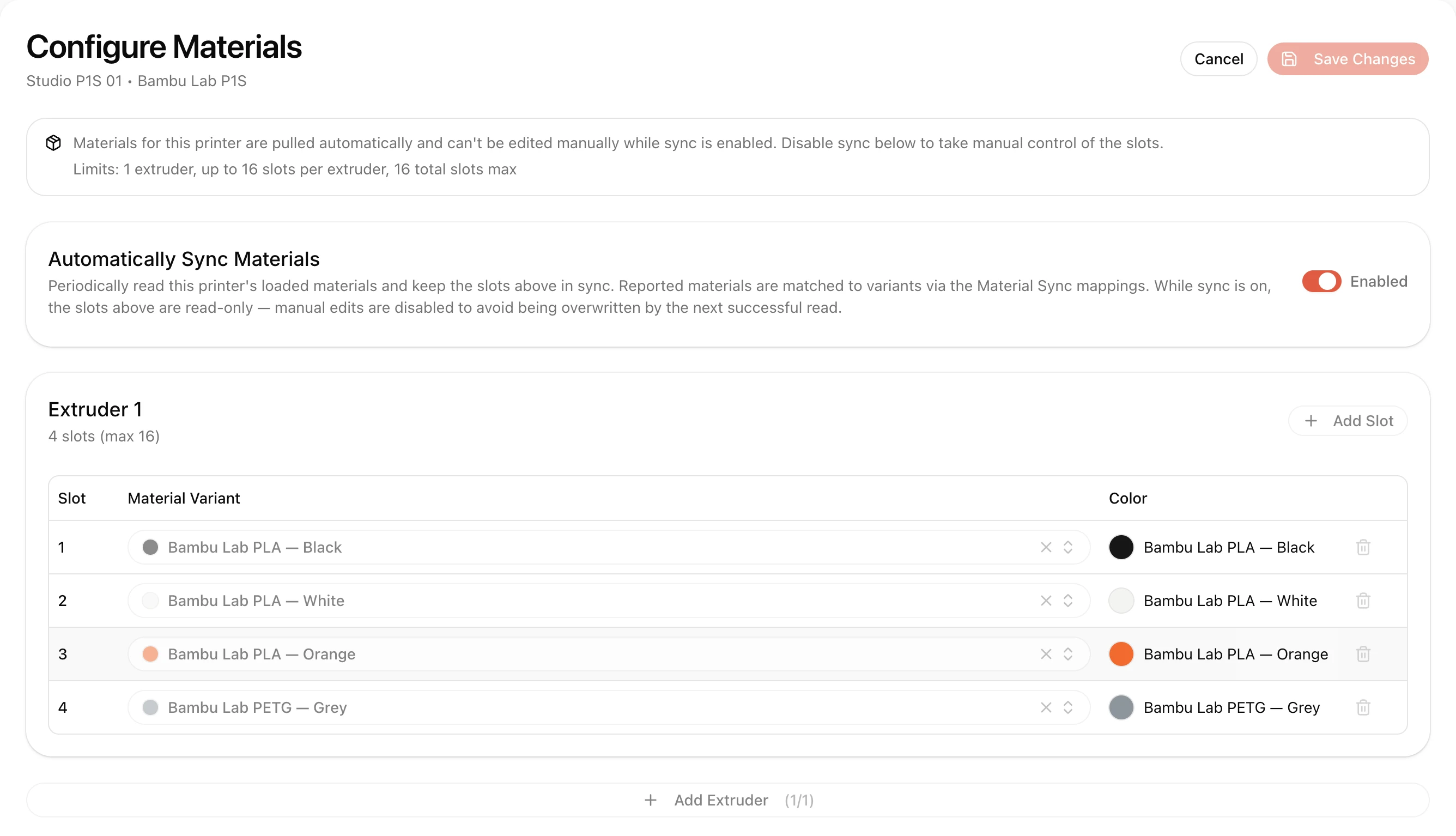
- Select Configure Materials.
- For each extruder/slot, choose the material variant that’s currently loaded.
- Save your changes.
Automatic material sync
Some printers can report which materials are physically loaded: Bambu Lab printers with an AMS read this from the spool’s RFID tag. For these printers, the Configure Materials page shows an Automatically Sync Materials toggle. When it’s on, Pluraprint periodically reads the printer’s load-out and keeps its slots up to date for you, so you don’t have to re-enter what’s loaded every time a spool is swapped.
Because a printer reports its own internal codes (for example, a Bambu spool SKU) rather than your variants, each distinct code has to be mapped to one of your material variants once. Pluraprint handles this through the Material Mapping page under Resources:
- Needs Mapping lists every reported material code that doesn’t yet map to a variant, grouped by code, with the printers and slots affected. Select Map to variant, pick the matching variant (only variants of the correct form are offered), and save. If the variant doesn’t exist in your library yet, use Create variant in the picker to add it without leaving the mapping. It’s selected for you once created.
- Mapping a code resolves every printer reporting it: now and in the future, so you only map each spool type once.
- Existing Mappings lists the mappings you’ve created. Review these when adding a new product or color.
Reported codes include the spool’s colour where the printer knows it, shown as a swatch next to the code. That means two spools of the same product in different colours are mapped separately, so a job asking for black PLA isn’t routed to a printer loaded with white.
Colour-aware codes are an extension of the product code, so mappings work at either level: a mapping made against the product on its own covers every colour of it, and you can add a mapping for a specific colour later to override that for just that spool.
When anything needs mapping, the Material Mapping sidebar item shows an alert badge with the number of unmapped codes, so admins notice without opening the page.
If a printer reports a code that isn’t mapped yet, that slot shows as an Unknown material on the printer’s detail page, with a link to map it, rather than the previously loaded material, so you’re never misled about what’s actually in the slot.
While sync is enabled, the material slots are read-only. Turn sync off before making manual assignments. Turning it back on allows the printer’s reports to replace those assignments.
How many slots does my printer have?
| Printer | Extruders | Slots |
|---|---|---|
| Bambu Lab P1S | 1 | Up to 16 in Pluraprint (with compatible AMS hardware) |
| Bambu Lab H2S | 1 | Up to 16 (with AMS) |
| Bambu Lab H2D | 2 | Up to 16 total (8 per extruder, with AMS) |
| Formlabs Form 3 / Form 4 | 1 | 1 (resin tank) |
| Debug Printer | 1 | 4 |
On a printer with two extruders, each AMS unit belongs to the extruder it’s physically connected to, and contributes four slots to that extruder. Pluraprint reads this from the printer, so however your units are arranged (one on each side, or both on the same one) the slots line up with the machine. An extruder with no AMS connected uses the spool loaded directly into it, which appears as that extruder’s single slot.
Why this matters
- When a job is approved, Pluraprint checks which printers at the site have the required materials loaded and routes the job accordingly: see Approving Print Jobs.
- Material-based quotas (for example, “500g of PLA per student per month”) are calculated from the jobs counted by each quota: see Setting Usage Quotas.
- Keeping your library and slot assignments up to date means fewer surprises when a job reaches the front of the queue.
- Station screens can show what each printer is carrying directly on its card, so somebody at the machines can pick one without opening it. What that indicator shows, a color, a material type, both, or nothing, is set once for the deployment under General settings.