

Rules & Quotas
Building Rules
Create and manage rules that define what print jobs require before they can queue.
This page walks through the Rules page (Admin → Rules), where administrators create and manage the rules described in Rules & Quotas Overview.
The Rules list
Open Admin in the sidebar, then choose Rules. You’ll see:
- A search box and tag filters to find specific rules.
- A table of rules, with columns for:
- Name: the rule’s name and description.
- Requirements: badges showing what this rule produces (for example, Approval or Maximum Cost).
- Tags: labels you’ve added to organize related rules.
- Scope: the site this rule applies to, or “Global” for all sites.
- Priority: a number used for display ordering (higher numbers appear first; every matching rule is still enforced).
- Status: “Enabled” or “Disabled”.
Select New Rule to create one, or use the row menu to edit an existing rule. The Delete action removes a rule (with a confirmation, since this affects job evaluation immediately).
The rule editor
Creating or editing a rule opens a full-page editor with two parts: a Details panel on the left, and Conditions / Requirements / Test tabs on the right.
Settings
| Field | Description |
|---|---|
| Name | A short, descriptive name (for example, “Large jobs need staff approval”). |
| Description | Internal notes about why this rule exists: visible only to administrators. |
| Site scope | Apply this rule to one site, or choose “Global (all sites)” to apply it everywhere. |
| Priority | Controls display ordering when rules are listed and previewed. Higher numbers come first; priority never changes which rules are enforced. |
| Tags | Free-form labels (for example, “after-hours”, “large-job”) to group related rules. |
| Message to user | Shown to the submitter on both the web and station checklists, explaining why this requirement applies. For a deny requirement, this is the primary explanation shown when the job is blocked. It is shown only once the rule has actually matched; see Rules that depend on something Pluraprint doesn’t know yet. |
| Enabled | Disabled rules are completely ignored: as if they didn’t exist. |
Build: when the rule applies
If you leave the condition empty, the rule fires on every job. Otherwise, you build a condition out of one or more checks, optionally grouped with all of (AND), any of (OR), or not.
Adding a check
Each check has three parts:
-
Field: what to look at, organized into groups:
Group Example fields Job Estimated duration, estimated material, estimated cost, file size, printer model, is reprint, site, definition completed at Slicer settings Infill density (0–100%), supports enabled, layer height (mm) Materials Material type used (for example, PLA, ABS, or ASA), whether material details are available Owner Owner identified, owner’s roles, how the owner was identified (card, sign-in, PIN, automatic, admin override) Source Submission source (Web, Station, API/Integration) Queue Jobs currently waiting, estimated wait time Time Hour of day, day of week Action Action source, how the acting user was identified -
Operator: how to compare it, in plain language:
Operator Meaning equals / does not equal Exact match greater than / less than / greater or equal / less or equal Numeric comparison is between Numeric range (inclusive) is one of / is not one of Match against a list of values contains / does not contain Case-sensitive text search starts with / ends with Case-sensitive prefix or suffix includes any of / includes all of / does not include Match any, every, or none of the selected list values is empty / is not empty Check a known text or list value for content matches regex Matches a regular expression (for advanced use) is known / is unknown Whether this field has a value yet -
Value: entered with a widget appropriate to the field (a dropdown for roles or sites, number fields with the correct units and limits, a checkbox for true/false, etc.). Infill density is entered as a percentage from 0 to 100, and layer height is entered in millimeters.
For lists, equals compares the complete set of values, ignoring order and duplicates. For example, a job using PLA and PETG includes PLA, but does not equal the set containing only PLA. Older saved comparisons appear with a legacy label and keep their original behavior.
is empty is different from unknown: an unavailable value remains Unknown. Use is known and its checkbox to test whether a value is available. Empty checks need no comparison value.
Optional slicer metadata
Infill density, support generation, and layer height are extracted from Orca 3MF project settings when the file contains them. Other file processors may not provide these values. Pluraprint handles an unavailable value explicitly:
- A normal comparison such as Infill density greater than 30% evaluates to Unknown. This is conservative: the job remains in definition review instead of bypassing a restriction that Pluraprint cannot verify.
- is known matches only when the value is available; is unknown matches only when it is absent.
- To skip a threshold rule when metadata is absent, create an all of group containing Infill density is known and Infill density greater than 30%. The first false check makes the whole group false for files without that metadata.
- To require review whenever metadata is absent, add a separate rule with Infill density is unknown and produce the appropriate approval or deny requirement.
Material conditions use the material labels reported by the slicer. To restrict ABS and ASA,
choose Material type used → includes any of and enter ABS and ASA. The condition matches if
the job uses either material.
Grouping conditions
Use the + Add group button to nest conditions:
- All conditions: every condition inside must be true (AND)
- Any condition: at least one condition inside must be true (OR)
- not: inverts the result of what’s inside
Collapse checks to read a compact summary; expand them to edit. Each check or group can be reordered, duplicated, or deleted using the icons on its card.
Build: requirements — “what must be satisfied?”
This tab defines what gets added to a matching job’s checklist. Select + Add Requirement and choose a type:
Every print job requires an identified owner before it can queue. You do not need a rule for this. Existing Owner Identified requirements are deprecated and have no effect, including their rule messages. You can remove them; other requirements in the same rule still apply.
| Requirement | What it adds to the checklist |
|---|---|
| Owner Has Role | The job’s owner must hold a specific role (e.g., “staff”): including roles that inherit from it. |
| Approval | A person must approve the job. You can set a label (for multi-stage approvals), an optional time limit (SLA), and constraints: required/forbidden roles or specific users who may approve, and whether the requester can approve their own job. |
| Identification Required At | The job’s owner must be identified at a specific location: Web or Station. |
| Definition Required At | The job’s print settings (definition) must be completed at a specific location: Web or Station. |
| Maximum Duration | Caps the job’s estimated print time (hours and minutes). Jobs over the limit are blocked. |
| Maximum Material | Caps the job’s estimated material usage (in grams). |
| Maximum Cost | Caps the job’s estimated cost. |
| Deny | Blocks the job outright, with a reason shown to the user (and an optional code for integrations). |
| Custom | A requirement satisfied by an external system or integration, identified by a key, with a message and optional link shown to the user. |
Each requirement type’s card explains what it does and shows only the fields relevant to it. Pluraprint prevents a rule from being saved with duplicate requirements, empty condition groups, unknown field names, incompatible operators, or invalid regular expressions.
Test before you save
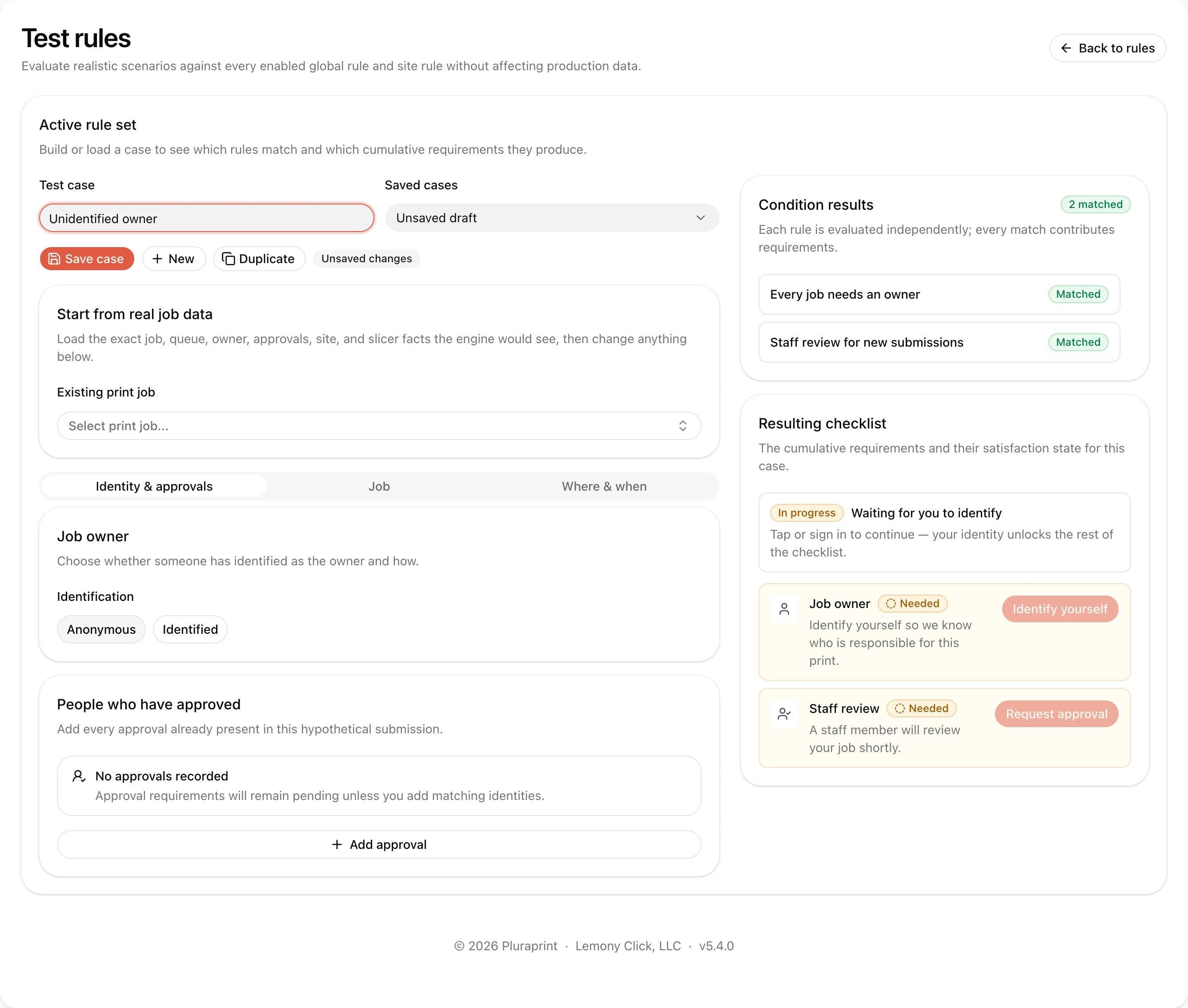
The Test tab contains a full rule tester. There are no built-in sample scenarios. You create cases that represent how your organization actually works. A case can start from a real print job, which loads the same job, queue, identity, approval, site, and slicer context used by production evaluation. You can then override any value without changing the real job.
Use the three case tabs to test:
- Identity & approvals: anonymous or identified owners, the identifying user and method, effective roles, and any number of labelled approvals by different users.
- Job: name, estimates, file size, printer model, reprint state, site, definition location, materials, and optional slicer settings.
- Where & when: submission and action sources, site and station, queue counters, exact time, hour, and day of week.
Optional values can deliberately be left Unknown. This is useful for checking partial kiosk and web submissions before the owner, definition, or slicer metadata is available. The result shows every rule as Matched, Not matched, or Unknown, lists the fields behind an Unknown result, and renders the cumulative requirements checklist.
Name and save cases you expect to reuse. Saved cases stay in the current browser and can be duplicated as a starting point for boundary tests. Select Test rules from the main Rules page to open a dedicated tester with the same cases and controls. It evaluates the complete active global-and-site rule bundle; list filters and pagination do not limit that test.
Tips for writing rules
- Start narrow. Limit the site or condition while testing. Tags only organize rules; they do not limit which jobs a rule affects.
- Use the message field. The “Message to user” text is what your team will actually see on both web and station checklists: make it explain why the policy applies and what to do next, not merely that the job is blocked. Write it in the present tense, for someone the rule has already matched (“Your account is suspended; see the lab desk”): Pluraprint withholds it until the rule is decided, so it never has to hedge on your behalf.
- A rule about the owner needs the owner. A condition on the job owner’s role or identity can’t be judged until they’ve signed in or tapped a card. Such a rule shows as may apply and waits for identification rather than being treated as a match or a non-match. Every job requires an identified owner automatically.
- Remember rules combine. If a job matches three rules that each require approval, it will enforce all three. Requirements deduplicate only when their complete configuration is identical. Reusing an approval label with different constraints does not discard either constraint; use distinct labels when you intend separate approval stages.
- Disable instead of delete while testing changes. You can re-enable a rule instantly, but deleting it is permanent.