

Print Jobs
Approving Print Jobs
Review, configure, and approve print jobs before they queue.
If your organization’s rules require approval before a job can print, staff with the right permissions review and approve jobs from the Queue page.
Usage quotas can also add an approval dynamically. If an administrator has configured a quota for controlled overrides, an over-limit job shows a Quota override: … requirement alongside its rule-based approvals. The reviewer must hold one of the roles configured on that quota, and the exception applies only to that quota. Pluraprint rechecks the quota and the reviewer’s current eligibility when the job is queued; see Setting Usage Quotas.
The Queue page
Open Queue under the Operations section of the sidebar.
Failed jobs that need acknowledgment appear first under Needs attention. Approval jobs and the Active queue follow in separate sections. Each section has its own search and page controls.
Preparation and approval
If any jobs need review, they appear in the Preparation and approval section, showing each job’s thumbnail, name, status, approval stage (for example, “Stage 2 / 3” if multiple approvals are required), estimated duration, submitter, and when it was created.
Select Prepare on a job to review it. Pending Definition jobs appear here too: confirm their materials and select Continue to approval before reviewing any approval requirements. This step does not queue the job. If the file does not identify a supported printer model, re-slice for a supported printer and upload the new file. Virtual printers have the same model and tool compatibility requirements as their physical counterparts.
Only jobs already awaiting approval can be selected for bulk actions. To act on several approval jobs, select their checkboxes and use Approve selected or Reject selected. Selections persist when you change pages; the selection bar shows the total. Rejecting jobs asks for confirmation and accepts optional feedback for the selected jobs.
The main queue
Below that, the main queue table keeps jobs visible while they are uploaded, processed, queued, sent to a printer, printing, or paused. Their status updates automatically through the full queue-to-print handoff. You can:
- Search by job name.
- Filter by printer model, material type, or material color.
- Prioritize / Deprioritize a queued job to move it ahead of or back with other queued jobs (requires the prioritize permission).
- Open the ⋯ menu on a job for View Details or Delete.
The queue updates automatically as jobs move through the system.
Preparing and approving a job
Selecting Prepare opens the Prepare Print Job page: review and configure a job before queuing it.
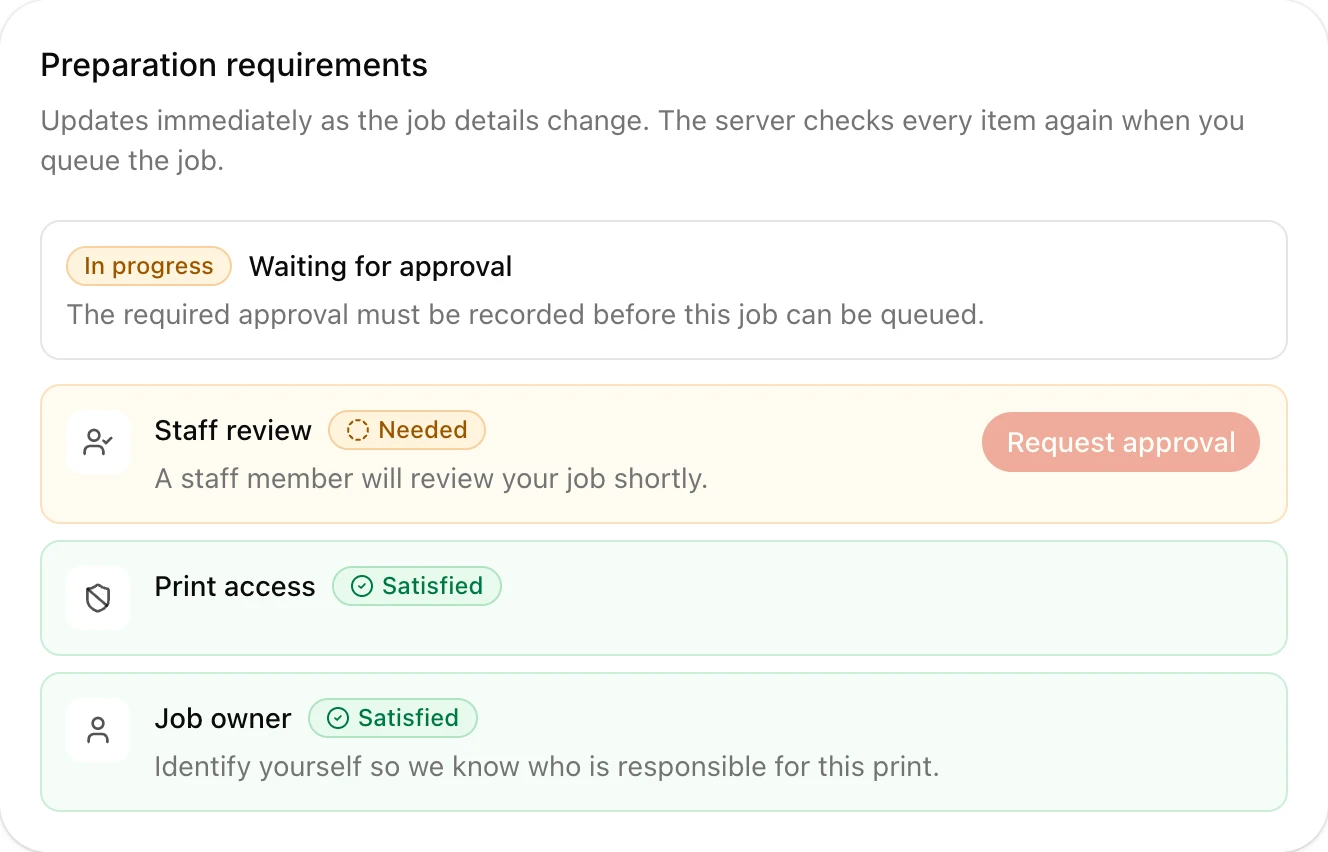
Multi-stage approval
If a job requires more than one approval, a banner at the top shows the overall progress (for example, “Multi-stage approval: stage 2 of 3”) and lists each required approval with its label (such as “Quality Check” or “Safety Review”), showing which are already satisfied (✅, struck through) and which are pending (◯, with the current stage in bold).
At a station, identify a reviewer and select Record Approval when other requirements remain. The identification label shows the approval that reviewer will give. The station records one eligible approval at a time, rechecks the requirements, and asks for the next reviewer. A reviewer who qualifies for multiple approval slots can identify again for the next slot.
Select Approve & Queue when all requirements are met. The station shows an alert only when requirements need attention, with instructions or reasons the job cannot queue. Completed requirements stay hidden. Approvals already recorded remain on the job.
Every job requires an owner. If one has not been assigned, select Identify Job Owner first. Checks that depend on the owner wait for identification; an unchecked account is not a printing restriction. If the identified owner has a restriction, the station shows its reason.
Reviewing the job
- Preview: the model thumbnail, printer model, source (web/station/API), and estimated duration.
- Approval: if an approval is currently pending and you meet its constraints (the required roles or users the rule names, and whether the requester may approve their own job), you’ll see its label, any additional instructions, and a Give Approval button. If the pending approval is for someone else to give, the section names what’s required instead of offering the button. Once all required approvals are recorded, this section shows a confirmation message.
- Basic Information: confirm or edit the job’s name, and confirm or assign its owner if one isn’t set yet.
- Material Requirements: for each extruder, confirm the type of material required (matched from the original file) and optionally narrow it to a specific brand and color. If a detected material type isn’t available in your materials library, you’ll see a warning: add it to the library or choose a different type before continuing.
Approving or rejecting
- Select Approve & Queue to record your approval and (once all requirements are met) queue the job. This button is disabled if any material type is unavailable or other approvals are still outstanding.
- Select Reject to decline the job. You’ll be asked to confirm: rejected jobs move to Rejected status and won’t print. The submitter can see this in their job history and can upload a corrected file if appropriate.
After approving and queuing, you’re taken back to the Queue page, where the job now appears in the main queue (or starts dispatching, if a compatible printer is free).
After approval
Once a job clears its entire checklist (including all approvals) Pluraprint queues it and dispatch assigns it to a compatible, available printer at its site. You and the job’s owner can follow its progress on the job detail page.